Stores and aisles: sort the list the way you walk
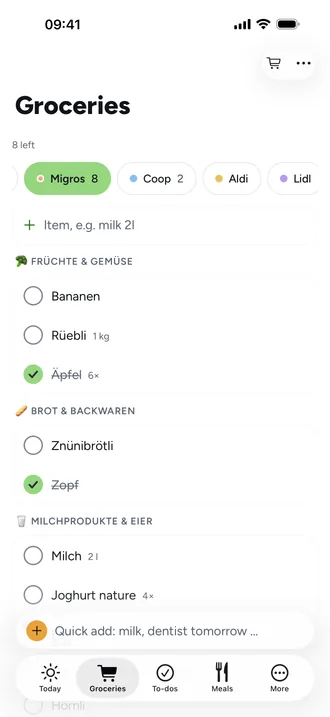
Every grocery list belongs to a store, for example Migros or Coop. Aisles such as “Fruits & vegetables” exist once for all stores. Each store picks its own and puts them in the order you walk through it.
Add a store
- Open Groceries and tap + Store in the row of stores, or Manage stores in the ⋯ menu.
- Tap Add store, enter a Store name and pick a Color.
- Tap Create store. It starts with all aisles in the usual order.
Set the route
- In Groceries, open the ⋯ menu and choose Migros store route.
- Drag the aisles by the handle into the order you walk through the store.
- Remove what this store doesn't have with the minus. It then appears under Not in this store and comes back with a tap.
How an item finds its aisle
- Beeside remembers what you last chose at this store. Other stores aren't affected.
- If Beeside doesn't know the item yet, the app sorts it in the background. Private items are never sent to the server for this.
- If the aisle is wrong, change it in the item under Aisle: “Remembered for this item at this store.”
- If the store doesn't have that aisle, the item shows under No aisle.