Approve a new device for the vault
The vault is end-to-end encrypted. A new device can only read it once a device that already has it approves it. That way nobody gets your passwords just because they can sign in.
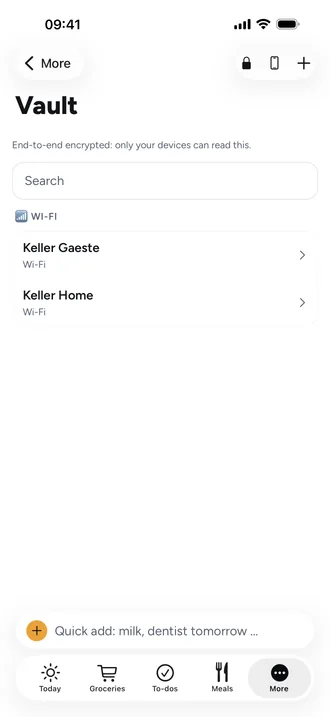
- On the new device, open More › Vault. It says “This device is waiting for approval” and shows a 16-digit verification number.
- On a device that already has the vault, open the vault and unlock it. The devices icon at the top right is red and it says “One device is waiting for approval”.
- Tap it. Under Waiting for approval you'll see the new device with its verification number.
- Compare the numbers. If they match, tap Approve, then It matches, approve. If they don't, tap Reject.
- On the new device, tap Check again. The vault opens.
Why the verification number?
Both devices work out the number from the new device's public key. If both show the same number, you're really approving your own device and not one that has slipped in between.
Good to know
- Only an adult on a device that's already approved can approve.
- If one parent approves the other's new phone, their private entries appear once one of their previous devices is unlocked.
- Remove an old device under With access with Remove. Beeside then renews the keys so it can't read old copies either.